It is common for cellphones to meet a watery grave or for water to be
spilled on laptops. Keeping your nerves in such situations can actually
help you save the device.
So, the first thing you should not do
in such a situation is to see if the device is working or not. First,
get rid of the water. In case of cellphones, remove the back panel,
battery, SIM card and memory card from the phone and dry it with a
towel. The next step to be followed is to place your phone in air-tight
bag full of uncooked rice for absorbing moisture overnight or even a
couple of days. Avoid using the hair dryer or vacuum cleaner. In case of
laptops, unplug them from the mains. Also, if your laptop has a
removable battery, remove it. In case of a nonremovable battery, shut
down your system immediately. Turn it upside down to prevent water from
damaging the innards and then tap the machine dry. Keep it under a
strong light such as a table lamp that can evaporate the liquid. Turn on
the machine and click the autobackup option (if available) to backup
the data. Next should be to visit a service center to get the extent of
damage checked.
We all appreciate the wonders of the
internet, but at the same time, there are still some health worries.
Health issues brought about by the influence of computers and the
internet have come to people's attention. The keyboard is a "refuse dump".
Most people have not realized that using the keyboard may cause
illnesses. First, the keyboard is a "refuse dump". There is dust and
hair inside. According to statistics, dirt accumulates at an average
speed of 2 grams ler month. Besides that, there is also a lot of
bacteria such as streptococcus, cocci and mildew on the surface. Harmful radiation cannot be ignored.
A study in Britain showed that low-frequency radiation and the computer
screen's magnetic field could cause 7 to 19 diseases, including itchy
eyes, pain in the neck, short term memory loss, and depression. Women
may get dysmenorrheal and have a prolonged period, or even a
miscarriage. The WHO says that miscarriages by pregnant women would
increase to 80 percent and cause birth defects if the mother used a
computer more than 20 hours every week.
The part that has the strongest radiation
The back of the computer has the strongest radiation. Then the second
strongest comes from the left and the right, with the screen having the
least. Therefore, do not put the back in front of others and keep it at
least 50 to 70 cm away.
How to reduce the harmful effects of radiation
1. Avoid working for extended periods on the computer. Keep a proper
posture and the distance between the eyes and the screen should be 40 to
50 cm.
2. The room should be comfortable with a suitable temperature and clean air.
3. It should not be too bright or too dark in the room. Avoid direct
radiation from the screen. It should be dry and clear in the room.
4. A color filter can be used on the screen to ease eyes strain.
5. Pay attention to how clean your skin is. There is a lot of static on
the screen. Dust can easily be transferred to the face or hands. Then,
after a long time, one may get macula or pigmentation, or even
dermatosis.
6. Nutritional compensation. Spending a lot of time in front of the
computer can consume visual purple of the retina, which comes from
vitamin A. So computer users should eat carrots, cabbages, bean sprouts,
dates, oranges, milk, eggs, animal liver and meat to compensate for
Vitamin A and protein deficiencies. Drinking tea is also helpful in
absorbing or resisting radiation.
(Source: news.xinhuanet.com / Translated by Women of China)
It’s an issue that has plagued humanity since the dawn of the mobile
phone. We use our trusty pocket computers so much that they rarely get
through a day with any power left. Many of us plug them in at night and
fall asleep, content in the knowledge that we’ll wake up to a fully
charged device.
But is it really safe to leave our phones plugged
into the charger once they’re fully charged? Is it damaging the battery
— or shortening its lifespan?
There are lots of myths and
questionable ideas on this topic. You’ll find the Internet awash with
opinions masquerading as facts. What’s the truth? We’ve got some answers
for you.
Should you leave your phone plugged into the charger overnight?
“Leaving
your phone plugged in overnight is okay to do, it will not drastically
harm your device,” says Shane Broesky, co-founder of Farbe Technik
a company that makes charging accessories. “Your phone is very
smart. Once it’s fully charged, it knows when to stop the current from
coming in to protect your phone from overcharging.”
So far so good, but there are situations when leaving that smartphone
plugged in overnight can slowly reduce the lifespan of your battery.
“Lithium-ion batteries can react poorly if your phone experiences
elevated temperatures, leading to a damaging effect,” explains Shane.
“If you have a case on your device that does not allow heat to escape,
this heat will increase the temperature of the battery and will cause
cell oxidation, which will shrink the capacity and shorten the
lifespan.”
Make sure you take your phone case off at night if you’re going to leave your phone plugged in and charging, in other words.
What’s the optimum way to charge your phone?
“The
sweet spot for lithium-ion batteries is to keep them charged between 50
and 80 percent. This allows for the charged ions to continue to work
and protect the life of your battery,” says Shane. “Charging your device
in short spurts throughout the day will give these ions just enough
energy to keep them going.”
So frequent top-ups, rather than one
daily charge up, is healthier for your battery. It’s not convenient, but
that’s the optimal way to charge your smartphone if you want to ensure
the longest life possible.
What to avoid
“The major
threat to your battery is charge cycles,” Shane explains. “A charge
cycle is where your battery goes from empty or near-empty to full — and
every phone battery has a limited number of charge cycles before the end
of its life.”
You
may have a high number of charge cycles before that limit is reached,
but eventually the battery is going to noticeably degrade. When it does,
you’ll find that it lasts only a very short amount of time, or it will
simply not turn on at all.
Recent versions of Ubuntu use CUPS for printing,
but disable detection of network printer advertisements by default. By turning
it on you should see all available printers.
Enabling Network Printer Browsing
Prior to Ubuntu 13.04 it was possible to do this using the printer config UI, but
now we have to use the command line.
Start a command line terminal then (as user root) run this command:
cupsctl BrowseRemoteProtocols=cups
Now startup System Settings. You can do this using the icon at top right of the desktop:
Then click on Printers and do NOT click on the Add button:
Wait anything from a few seconds to a few minutes and you should see lots
of printers available:
Example of Printing
Double clicking on a printer such as bcopy (DAMTP printer in Pav B) brings up
the properties of it, including the location:
Additional Information
All of our printers default to using A4 paper
and most which can print double-sided (duplex) will do so by default.
If you do not see any printers, or cannot view the properties etc.
you need to first be authenticated to the network in order to print.
Last Time, we take up encrypting and adding password to usb stick
for security in Windows 7 using BitLocker To Go feature. Overall, the
utility is very useful but unfortunately it will not be included in the
Home Premium Editions of Windows 7. Better go to the Ultimate version to get this function.
Anyway, How to Turn-Off the Encryption afterwards?
Quick Information: BitLocker
Drive Encryption is a security in Windows 7 Ultimate and Enterprise
edition designed to help protect data from being accessed or opened by
unauthorized users.
Unlocking the Encrypted Drive
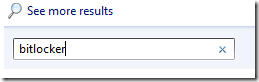
Simply type “BitLocker” in Start Menu Search
and Open the BitLocker Drive Encryption Program
Once it opens, just find the drive and click "Turn Off BitLocker”
It will ask for a confirmation: “Your drive will be decrypted. This may take considerable time. You can monitor the status of your drive decryption.”
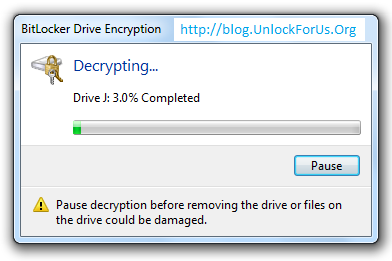
Just proceed by clicking Decrypt Drive
Wait… wait… wait
That’s it… Enjoy!
Some users have been complaining about an issue regarding
BitLocker encryption on Windows 8.1 devices, mainly, an incompatibility
between a drive encrypted on Windows 7 and later used in a Windows 8.1
machine. If you are experiencing this issue, then maybe this guide will
give you the solution.
If you have not heard about BitLocker by now, and you want an extra
layer of security for your Windows computer, then you should definitely
do some research regarding what it can do and how it can protect your
files. But even with its advantages, Microsoft’s encryption feature has
some issues when moving drives from Windows 7 computers to Windows 8 or
Windows 8.1.
How to Disable BitLocker on Windows 8 / 8.1
We’ll consider the following scenario: you have been using BitLocker
on a Windows 7 computer and you have recently bought a new Windows 8 /
8.1 computer and you want to install your old hard drive into the new
tower. When you try to access the encrypted partitions, Windows 8 / 8.1
advises you to turn off BitLocker or does not recognize your password.
There are a few ways around this problem, some being simpler then
others, and it is up to you to determine which of them can be of use in
your case. Here’s how you disable BitLocker on Windows 8 or Windows 8.1
Method 1: Disable BitLocker from Windows 8 Control Panel
Similarly to how you’d go about this problem in Windows 7, it might
work to disable BitLocker from Control Panel, assuming you know your
passkey and it still works. To disable BitLocker from Windows 8, open
the Search charm and type “Manage BitLocker” and click on the
utility. This will open the BitLocker window, where you you will see all
your partitions and you can either select to suspend BitLocker or
completely disable it. Select the option you want and follow the wizard.
Method 2: Disable BitLocker from Windows 8 using the Local Group Policy Editor
If the first method is not a viable option for you, then using the
Group Policy utility (GPO) might offer the solution. To do this, open
the Search charm in your Windows 8 machine and type in “Group Policy“, then select “Edit Group Policy“. From here, navigate using the left-hand side menu to Computer Configuration -> Administrative Templates -> Windows Components – > BitLocker Drive Encryption -> Fixed Data Drives and select the “Deny write access to fixed drives not protected by BitLocker” option and double click it.
In the window which opens, click the radio button corresponding to the “Not Configured” option, click Apply and restart your computer. This should fix your problem
Method 3: Use Windows 7 to disable BitLocker
If both methods have failed, then all you’re left with is installing
your encrypted hard drive back into your Windows 7 computer and going
through the methods once again. In this scenario, method 1 will fix your
problem and decrypt your drive, allowing you to use it in your Windows 8
/ 8.1 computer.
Sometimes,
smartphones can be a boon for your personal productivity, but other
times it's amazing how much trouble they have performing simple tasks.
Here are ten things your phone probably sucks at, and how to make it
work better.
10. Lasting Until the Next Charge
When you
have something that runs on batteries, it's inevitable that it'll run
out of juice. That's just the nature of the beast. But oftentimes, your
battery dies long before you want it to, and that's not good
(remember how long dumbphones used to last?). Luckily, there are two
things you can do to fix this: first; make sure your phone isn't wasting
its battery. Check out our guides to getting better battery life on Androidand the iPhone for more. Next, just make sure you charge it whenever you can. It's easier than you think—and we have strategies for that too. Image by Jaroslav Machacek (Shutterstock).
9. Understanding What You Type
This one
isn't really your phone's fault—it tries really hard—it's just that
typing on a keyboard that tiny is really difficult (even with the
sometimes-hilarious autocorrect helping you out). The best solution is
to improve your typing skills, but if you're on Android, you're also lucky enough to have your choice of keyboards. Here are the five best keyboards around, but if you don't like those, check out our guide on finding the right keyboard for you. With the right tools and some honed skills, you should make typing with your thumbs just a little bit easier.
8. Giving You Control
I don't want the Blockbuster app on my phone. Why can't I get rid of it? I want to use Google Maps for all my navigation. Why won't my iPhone let me?
Sure, you could root or jailbreak, but manufacturers are constantly
working against you to make that more difficult, and even the Nexus
phones come with some unnecessary apps these days. At least they're a
bit easier to root, but good luck finding one on your carrier of
choice—depending on the device, that's all luck. Thankfully, you can at
least make up for some of this by rooting, jailbreaking, unlocking, and getting rid of that crapware on the phone you do have—no thanks to the manufacturers and carriers, of course. Image remixed from myVector (Shutterstock).
7. Being Durable
Remember
the days of Nokia phones that could survive a nuclear holocaust? What
happened to those? These days, it seems like dusting your phone wrong
could crack the screen, cause your buttons to stop working, or even just
wear on that darn battery cover. We understand it's all in the name of
design, and luckily you can fix most of these things yourself—whether
it's replacing the screen, making the most of your broken buttons, or just getting a case to protect it all.
6. Taking Good Pictures
This has
become less of a problem over the years, but smartphone cameras are
still far from the best cameras around—yet most of us have replaced out
superior point-and-shoots with the cameras in our pockets. Luckily,
while they don't always take the best of pictures, there's a lot you can
do to make the best of what you've got.
Take extra care to follow the basic rules of photography (like using
your light), tweak your camera app's settings, and even do a little
post-processing work to make those pictures usable.
5. Keeping You Focused
It's nice
to have a phone that gets email, browses the web, and entertains you
when you're bored. The problem? It also distracts you while you're
driving, keeps you from interacting with people, and all-around annoys
the people around you. You don't need to give up your smartphone to stay focused, though—you just need to change how you use it. Read up on the most annoying things you do with your phone that you should quit for more info.
4. Staying Up to Date
It's
amazing how fast a "modern" phone can start to feel out of date. The
iPhone 4 can't navigate using Apple Maps, and multiple Android phones
from the past two years have no hope of getting Jelly Bean (or even Ice
Cream Sandwich). As annoying as this is, a little ingenuity (and a few
good apps) can get around this problem nicely. We always try to keep you
up to date with the latest OS' features now, whether it be iOS 6 or Android Jelly Bean. Plus, with the right buying and selling tactics, you can upgrade to the latest and greatest every few months, without spending a fortune.
3. Giving You a Moment's Peace and Quiet
Out of the box, your phone probably vies for your attention a lot. All those notifications are annoying at best, and productivity-killing at worst. You could just put your phone on silent, but you're better off pruning your notifications and optimizing how you use them.
Turn off the notifications you don't need, keeping only the important
ones, and give them each a different tone so you know whether something
is important (and when it can be left alone). With a good system in
place, you should be able to keep your phone from going off every ding
dong second and keep your sanity in place.
2. Saving You Money
When did
having a phone get so gosh darn expensive? If your wallet's feeling a
little light, never fear—there are a few things you can do to keep the
cost down (that the carriers probably won't tell you about). First of
all, you can trim a bit off those bills by using free services like Google Voice to cut down on texting, or VOIP services to cut down on minutes usage. If you've lost your coveted unlimited data plan, you can reign in usage to make sure you don't incur overages (or, if you don't want data, you can get rid of it altogether). However, if you're really looking to save some dough, go prepaid. The average iPhone user can save over $1000 by switching to a prepaid plan, so if you're tired of paying up the nose for cellphone bills, that's one of your best options. Photo by Jason Rogers.
1. Being a Phone
Shockingly,
the thing your phone is worst at? Being a freaking phone. When we
polled you about your biggest smartphone annoyances, dropped calls were one of the most cited problems, and unfortunately, there's only so much you can do about it. We offered a few solutions,
but generally the best thing you can do is optimize your phone's
reception (and not just by holding it correctly). If you get
particularly bad reception in your home or office, there are a few ways to work around that, but if you seem to have it more often than not, you'll need to get to the bottom of why
before you fix it. In the end, the best thing you can do is have a
secondary phone line—whether it be a landline, VOIP on your computer, or
even VOIP on your phone—to make sure you're always connected. Image remixed from assets from PSDGraphics.
Obviously, not every
phone has these problems—some may have okay battery life, or get fewer
dropped calls, but we went a little tongue-in-cheek for the sake of
humor.
Seriously, though: does anyone else think it's amazing how modern
smartphones lack basic features we hold valuable? My phone can act as a
wallet, but it can't hold a charge for more than a day? I can download
10 different navigation apps, but I can't make any of them the default
over Apple's? Seems like maybe some priorities are a bit out of whack.
Can I get an Amen?


 Then click on Printers and do NOT click on the Add button:
 Wait anything from a few seconds to a few minutes and you should see lots
of printers available:
Wait anything from a few seconds to a few minutes and you should see lots
of printers available: